Attaching the TouchGuide
Hold the TouchGuide over the screen, with the opening for the Speech Display Bar (SDB) at the top.

Insert the bottom tabs of the TouchGuide into the slots in the bottom of the device frame.
While holding the bottom tabs in place, lift upward with your fingers at the top of the TouchGuide to flex the middle upward slightly. Then insert one of the side tabs into the slot in the device frame.
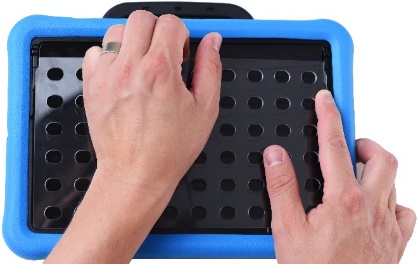
Insert the other side tab into the slot in the device frame. When the TouchGuide is in place, it cannot be raised from the screen.
To remove the TouchGuide:
Lift upward with your fingers at the top of the TouchGuide to flex the middle of the TouchGuide upward slightly.
Then pull either the top right or left tab out of its slot in the device frame.
Pull the other tab out of its slot in the frame.
Pull out the bottom tabs.
Adjusting Speech Display Bar Settings for the TouchGuide
To use the TouchGuide on a NovaChat device, you must adjust the Speech Display Bar (SDB) settings so it aligns with the TouchGuide. To do this, go to Menu > Application Settings > Style. Under “Speech Display Bar”, set the font, font size, number of lines, and icon display. Under “Miscellaneous”, set Show Navigation Bar (where applicable).
NovaChat 8 Settings
Font = Istok Web
Font Size = 20 Point
Number of Lines = 1 Line
SDB Icons = Off
Finding Vocabulary Pages that Match the TouchGuide Openings
Depending on the vocabulary file you are using, some pages (typically keyboards) may not match the TouchGuide size. Authors have typically provided pages in a vocabulary file that will work.
To determine if a more appropriate page is available:
Enter Edit Mode by choosing Menu > Edit Mode.
Select Menu > Pages.
Scroll through the list of pages to see if the author may have provided a more appropriate page.
Select the page you want and open it to confirm that the page is appropriate.
To replace the existing page with a more appropriate page:
Enter Edit Mode by choosing Menu > Edit Mode.
Press and hold the button that links to the page that needs replacing and select Edit Button.
Select Actions.
Select the current linking action (for example: Navigate, Visit, or Jump to Page).
Select Set.
Select the more appropriate page.
Select OK and then Save.