Dedicated Via devices are set up with Guided Access turned on. If you cannot locate the Guided Access passcode in your shipping box, please contact us at viasupport@prc-saltillo.com to get this information.
Guided Access helps you focus on what you need to do in the app by temporarily limiting what the device will allow you to access.
Restrict the device to a single app
Control which app features are available
Disable areas of the screen that do not apply to what you’re trying to do in the app
Disable the device hardware buttons
Limit how long the app can be used
Important: If you change the passcode at any time, PRC-Saltillo will not be able to retrieve your new passcode for you.
Ending a Guided Access Session
Triple-click the Home button or top button (depending on your iPad model).
Enter the Guided Access passcode.
Swipe up from the bottom of the screen to navigate to the iOS menu.
Important: If you choose to change your Guided Access passcode, write it down and store it in a safe place. PRC-Saltillo cannot restore a forgotten Guided Access passcode.
Restarting a Guided Access Session
Open the app that is installed on your device.
Triple-click the Home button or top button. The message “Guided Access Started” will appear briefly.
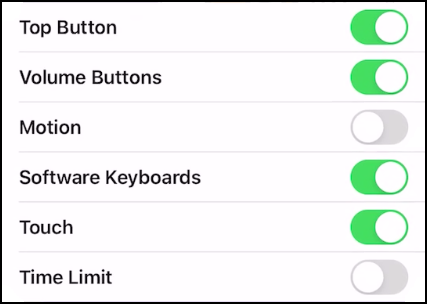
The Guided Access Option defaults are shown below: