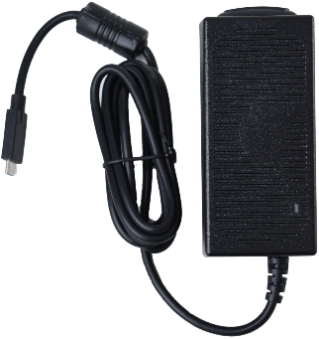
It is recommended to charge both the device and amplifier each night. A battery charger was included in the box with the device.
⚠️
Use only the battery charger provided with the device.
Cords and cables are potential entanglement or strangulation hazards. Please consider this prior to placing these items with device users.
On a regular basis, visually inspect cables, cords, and connectors for damage or wear, especially where they are subject to extra stress. Cables and cords can become frayed or damaged from heavy use or with age. For example, a frayed cable could cause a battery charger/power adapter to short-circuit, posing a hazard to the user. If any cable, cord, or connector is damaged or worn, call Service for a replacement.
Place the device in a safe location while charging.
Tablet and amplifier batteries are not replaceable by the customer.
Charging the Battery
Tap the device’s power button to turn off the display.
Plug the charger into an electrical outlet—a surge protector is recommended.
Plug the USB-C connector on the end of the charger cable into the USB-C port on the device.
The amber charging LED next to the charging port will blink slowly while the batteries are charging and will glow steadily when the batteries are fully charged.
Note: Using a charger other than the one provided with the device causes the charging LED to blink more quickly and the device will charge more slowly.
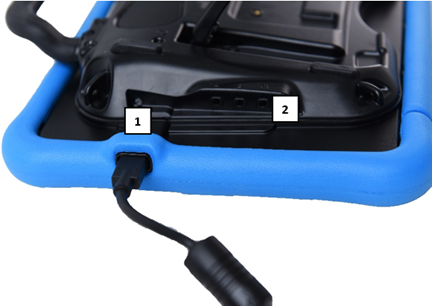
1 Amber charging LED
2 Blue LED
After 10 minutes of charging:
The blue LED will glow steadily and the amber LED will continue to blink. The device is not fully charged, but you can use it with the charger connected.
When the device and amplifier are fully charged:
The blue LED and the amber charging LED will both glow steadily.
Unplug the connector from the USB-C port. The amber LED will turn off.
Unplug the charger from the electrical outlet (optional).
Tap the device’s power button to turn the display on.
Best Practices for a Healthy Battery
Try to charge the battery before it drops to 0%. Charging at greater than 10% can extend battery life up to four times.
Turn off the device before storing it away for a long period of time.
Avoid continuous use or storage in high-heat environments; the device is designed to work at varying temperatures, but when exposed to extreme heat for prolonged periods of time it can degrade battery capacity.
Battery Status Icons
When the tablet or amplifier batteries reach low or critically low levels, an icon will appear in the notifications area of the Speech Display Bar (SDB). When you connect a charger, the icon will disappear. For details and visual examples, see Home Screen Overview in the Chat Software Manual.
Disposal of the Battery
If the battery in the device need to be replaced, dispose of the old battery in accordance with the local, state, and/or country regulations.