The default location for the menu button is on the left side of the Speech Display Bar (SDB).

To locate the Application Settings:
Select the Menu button.
Select Application Settings to open a list of submenus.
Select a submenu to open a list of settings.
When necessary, scroll to see all available settings on the page.
Many settings lead to additional options.
Changing the Location of the Menu Button
Go to Application Settings > Style. Scroll to the Miscellaneous section and select Menu Access. The Menu Access window will display three options. Select an option to set the location of the Menu button or hide it.
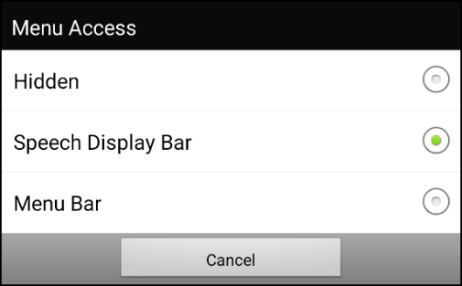
Location Option 1: Hidden
The Menu button will not be displayed. When you need to use the menu, press and hold on Back to open the menu. If you no longer want to hide the Menu button, go to the Menu Access window and select one of the other options.
Location Option 2: Speech Display Bar
The Menu button will appear in the SDB.
When you select the Menu button, the menu will appear along the left side of the screen. Select an option to open the feature.
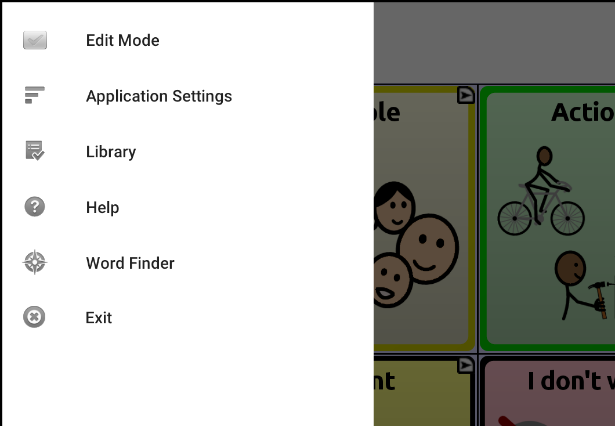
When you select Edit Mode, a checkmark appears and the menu options change. Select an option to open the feature. To exit Edit Mode, select Edit Mode again to remove the checkmark.
Location Option 3: Menu Bar
The Menu Bar will appear across the top of the screen.
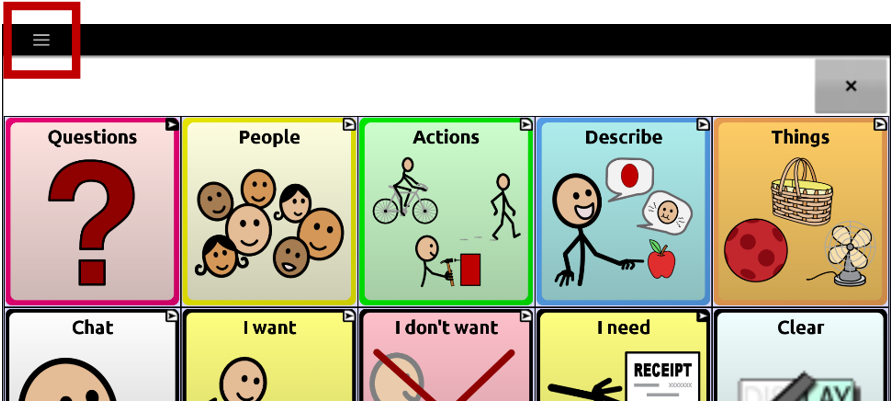
Select the button on the Menu Bar to open the menu along the left side of the screen. Select an option to open the feature. Use the Menu Bar arrow  to close the menu.
Menu Options
After selecting Menu, groupings of menus appear. These menus vary depending on other settings in the application.
Edit Mode
Turn editing on or off. While in Edit Mode, vocabulary buttons are outlined to indicate that they can be edited. The words “Edit Mode,” followed by the name of the Vocabulary File and the name of the current page, appear in red across the bottom of the screen.
Application Settings
Customize Chat software features
Vocabulary Settings
Customize vocabulary features
Library
View the vocabulary files
Help
View help and other information
Word Finder
Open Word Finder to find the path to specific words
Pages
View a list of pages
Edit Page
Edit the current page
Hide Mode
Turn Hide Mode on or off
Unavailable Settings
When a menu item in the Application Settings is disabled, the text below the menu item explains why the item is disabled and how you can enable it.